Secrets Management
Onehouse Secrets Management enables users to securely store, update and delete credentials required for Flow operations. Onehouse supports the following options:
- Onehouse Managed Secrets (OMS) - Credentials are securely stored by Onehouse (default)
- Bring Your Own Secrets (BYOS) - Credentials are stored in your cloud provider's secret manager
Key points:
- By default, Onehouse Managed Secrets (OMS) is enabled, and users will not be able to use BYOS.
- If BYOS is configured for your Onehouse project via Terraform or CloudFormation scripts, users will be able to use either OMS or BYOS.
- After Source addition, credentials such as username/password, API keys etc. are shown as masked values in Source details and when editing the Source.
Onehouse Managed Secrets (OMS)
Credentials are securely stored by Onehouse. Users input relevant credential information like username/password, API keys etc. in the Onehouse UI for adding a source or a catalog.
Onehouse project uses Onehouse Managed Secrets by default, this is determined by credentialsManagementType=OMS config in the Terraform and CloudFormation scripts.
Refer to the customer stack docs (AWS, Google Cloud) for details on Terraform and CloudFormation configurations.
Credential Lifecycle Management
Currently, users are expected to pause the Flows before making changes to the secret used in the Source configured for the Flow. The Flows should be resumed by the user after the change is done.
To update the credentials like username/password or key rotation use the "Edit" button.
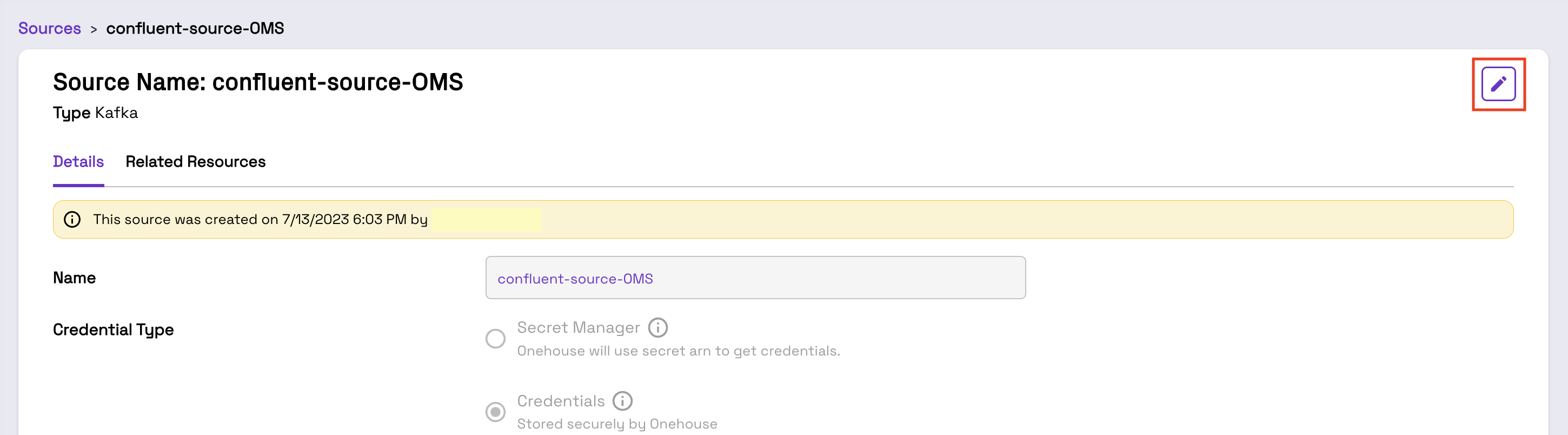
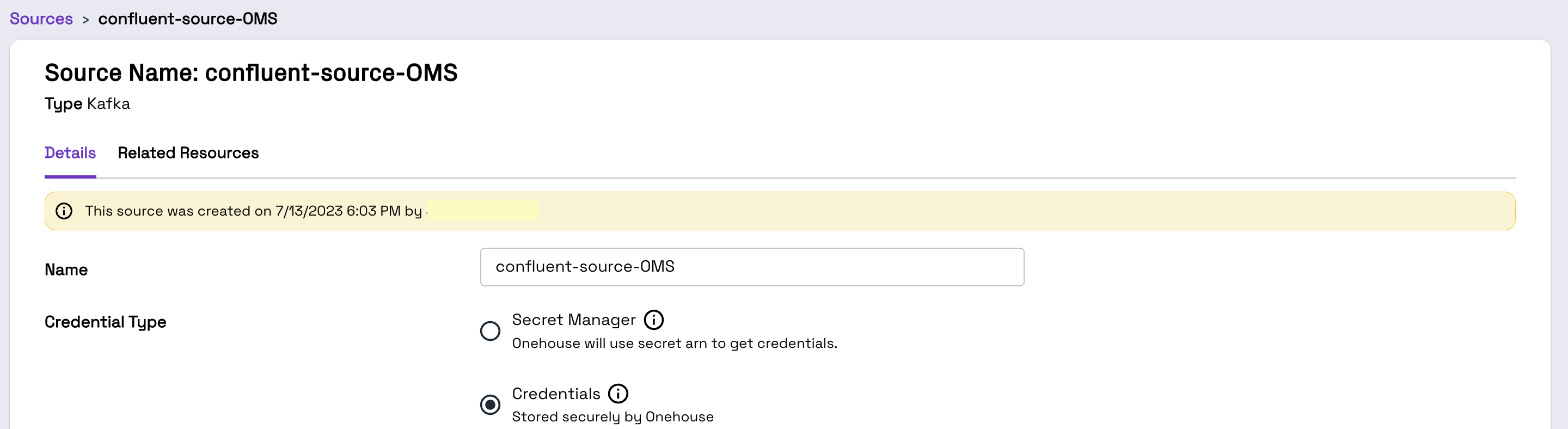
Credential Type and relevant fields are enabled for editing on clicking the Edit button.
Deleting a Source also deletes all credentials used in that Source.
Usage
Use the "Credentials" option under the "Credential Type" in the "Add" or "Edit" Source.
Bring Your Own Secrets (BYOS)
Onehouse users can also store credentials as Secrets in the Secret Manager of the linked cloud account, i.e., AWS Secrets Manager or Google Cloud Secret Manager.
Use AWS Secrets Manager Console or Google Cloud Secret Manager console to create a new secret. Then add the Secret Resource Name in the Onehouse UI when creating a Onehouse Source.
How a secret is opted in differs by cloud:
- AWS — the secret must carry the tag
accessibleToset toonehouse. Secrets without this tag are not accessible. - Google Cloud — the secret ID must start with
onehouse-. A secret with any other name is not accessible unless you list it undersecretManagerConfig.existingSecretsToGrantPermission.secretIdsin the customer stack.
To use BYOS, set the credentials management type in your customer stack (note the variable name differs between clouds):
- AWS, Terraform —
secretsManagerConfig = { credentialsManagementType = "BYOS" } - AWS, CloudFormation — set the Specify a method for storing secrets parameter to Bring Your Own Secrets
- Google Cloud, Terraform —
secretManagerConfig = { credentialsManagementType = "BYOS" }
Refer to the customer stack docs (AWS, Google Cloud) for configuration details.
During onboarding, the customer stack grants the Onehouse data plane read access to the secrets you have opted in — via the onehouse-customer-eks-node-role-<id> IAM role on AWS, and the onehouse-gke-node-sa-<id> service account on Google Cloud.
Enabling BYOS does not attach any AWS-managed policy — in particular, no SecretsManagerReadWrite policy appears on the node role, on either onboarding method. The grant is instead a read-only statement (secretsmanager:GetSecretValue, DescribeSecret, ListSecrets, ListSecretVersionIds) restricted to secrets tagged accessibleTo=onehouse, added to the onehouse-node-aggregate-access-policy-<id> policy on the onehouse-customer-eks-node-role-<id> role (where <id> is the suffix from your onehouse-stack-<id> stack name).
CloudFormation attaches that policy inline, so nothing changes in the role's attached policies list even when the switch succeeded — look under Permissions → inline policies in the IAM console, or run:
aws iam get-role-policy \
  --role-name onehouse-customer-eks-node-role-<id> \
  --policy-name onehouse-node-aggregate-access-policy-<id>
Terraform creates the same grant (same actions, same tag condition) under the same policy name as a customer-managed policy attached to the node role, so there it does appear under Permissions → attached policies:
aws iam list-attached-role-policies --role-name onehouse-customer-eks-node-role-<id>
Because the grant is read-only and tag-scoped, manually attaching a broader policy (e.g. SecretsManagerReadWrite) is not required and not recommended: it grants read and write on every secret in the account, and it hides missing accessibleTo=onehouse tags — Sources will work until the manual policy is removed, then fail on any untagged secret.
The BYOS grant covers secrets encrypted with the default aws/secretsmanager key. If a secret uses a customer-managed KMS key instead, ensure the Onehouse node role can kms:Decrypt with that key (grant it in the key's policy if needed) — otherwise reads fail with a KMS access error even when the secret is tagged correctly.
Migrating from OMS to BYOS
To switch an existing project from Onehouse Managed Secrets to BYOS:
- Apply the stack change. On AWS — CloudFormation: update your
onehouse-stack-<id>stack and set the Specify a method for storing secrets parameter to Bring Your Own Secrets; Terraform: setsecretsManagerConfig = { credentialsManagementType = "BYOS" }and runterraform apply. On Google Cloud (Terraform only): setsecretManagerConfig = { credentialsManagementType = "BYOS" }and runterraform apply. - Verify the grant — on AWS, see the verification note above (inline policy on CloudFormation, attached policy on Terraform). No
SecretsManagerReadWritepolicy will appear; that is expected. - Opt in every secret you will reference in Onehouse Sources: on AWS tag it
accessibleTo = onehouse; on Google Cloud name it with theonehouse-prefix (or list an existing secret undersecretManagerConfig.existingSecretsToGrantPermission.secretIds). Secrets that are not opted in are not readable by Onehouse. - For customer-managed-key encrypted secrets (AWS KMS CMK), make sure the node role can
kms:Decryptwith the key (see the warning above). - Switch the Source to the "Secret Manager" credential type and enter the secret's resource name (see Usage).
- If a broader policy (e.g.
SecretsManagerReadWrite) was attached manually at any point, detach it once steps 2–3 are verified.
Credential Lifecycle Management (BYOS)
Currently, users are expected to pause the Flows before making changes to the Secret used in the Source configured for the Flow. The Flows should be resumed by the user after the change is done. However, in case of Secret rotation, Onehouse will automatically pick up the new Secret in the connector, no pause/resume is required.
Editing the secret (BYOS)
You can modify or rotate the BYOS secrets by following the steps below:
- First pause the Flows that will be affected by the Secret change.
- Navigate to the Onehouse Source where the Secret was configured, click "Edit" and update the "Secret Resource Name".
- Click "Save" to update the Source with the new Secret.
- Resume any Flows that were previously paused.
Secret Deletion
You can delete the BYOS Secrets by following these steps:
- Before deleting a Secret, please ensure that Sources using the Secret are updated (with a new Secret)/deleted otherwise corresponding Flows will be impacted.
- To remove the Secret, delete the Secret using the Secret Manager console of the linked cloud account.
Usage
Use "Secret Manager" option under "Credential Type" in the "Add" or "Edit" Source.
BYOS Secret Formats
Each integration type requires credentials to be stored in a specific JSON format. See the documentation for your integration:
Data Sources
| Source | Documentation |
|---|---|
| Apache Kafka | Secrets Management (BYOS) |
| Confluent Kafka | Secrets Management (BYOS) |
| AWS MSK Kafka | Secrets Management (BYOS) |
| Postgres CDC | Secrets Management (BYOS) |
| MySQL CDC | Secrets Management (BYOS) |
| Confluent CDC | Secrets Management (BYOS) |
Schema Registry
| Type | Documentation |
|---|---|
| Confluent Schema Registry | Secrets Management (BYOS) |
Catalogs
| Catalog | Documentation |
|---|---|
| DataHub | Secrets Management (BYOS) |
Using Secrets in Jobs
Onehouse Jobs can access secrets stored in your cloud provider's secret manager. This is useful when your jobs need to authenticate with external APIs, databases, or third-party services.
Jobs currently only support Bring Your Own Secrets (BYOS). Onehouse Managed Secrets (OMS) are not yet supported for jobs.
See the Accessing AWS Secrets Manager guide for a complete Python example.